
Turn scanned data into structured, usable fields
The Cargosnap mobile app helps you capture logistics data accurately and efficiently in the operation. Instead of manually typing information or taking photos of documents, Cargosnap offers built-in scanners that convert physical data directly into structured, usable data 'fields'.
How to Use Scanners in Cargosnap
Scanners are used:
-
As the "file reference"
-
As a step in your "workflows"
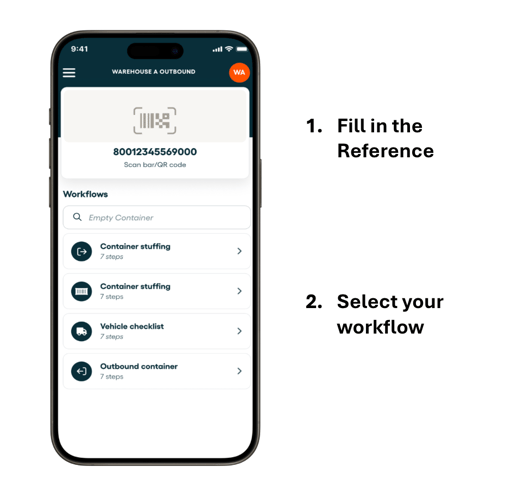
To use any of the scanners as the reference of your file, you must:
-
Go to "Company Settings"
-
Go to "Teams"
- Select a Team and go to "Default Device Settings"
💡 Tip: For detailed instructions, see the article "What is a reference in your file"
You need to be an admin (SuperAdmin or LicenseAdmin) to manage your reference widgets in the mobile app.
To use any of the scanners in a workflow, you must:
-
Create or edit a workflow
-
Add a step 'Type' that uses the desired scanner
-
Assign the scanner to the data field you want to capture
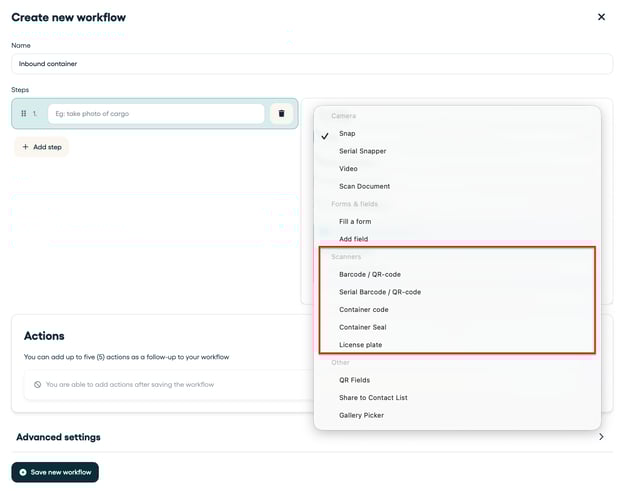
💡 Tip: For detailed instructions, see the article “Build Your Workflows”.
You need to be an admin (SuperAdmin or LicenseAdmin) to be able to create, duplicate, edit and/or delete workflows.
Available Scanners in Cargosnap
Cargosnap provides several scanners, each designed for common logistics and transport use cases. Below you will find more information about each scanner.
Barcode / QR Code Scanner
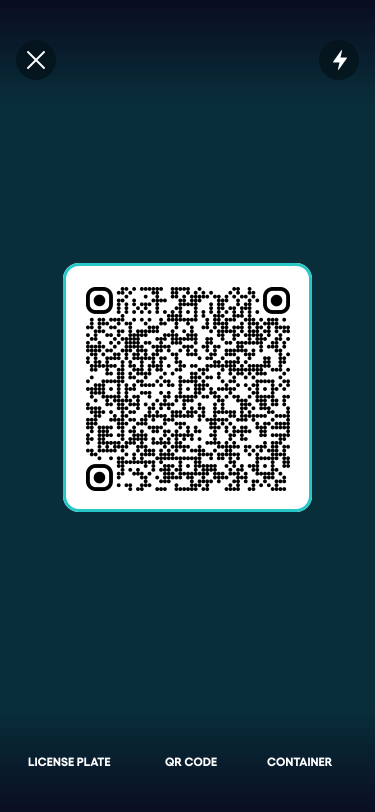
Use this scanner to capture single barcodes or QR codes.
-
Ideal for scanning shipment numbers and item labels.
Serial Barcode / QR Code Scanner
This scanner allows you to scan multiple barcodes or QR codes in sequence.
-
Useful for checking a packing list or verifying multiple items.
💡 Tip: More information in the article "Using the Serial Barcode Scanner"
Container Code Scanner
Designed specifically to scan ISO-standard container numbers.
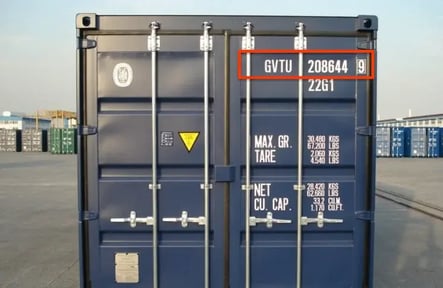
💡 Tip: More information in the article "Using the Container Code Scanner"
Container Seal Scanner
Use this scanner to capture the container seal directly.
-
Ensures seal numbers for containers and trucks are recorded accurately
.png?width=552&height=423&name=image-Mar-25-2025-02-26-25-9250-AM%20(1).png)
💡 Tip: More information in the article "Scan a Container Seal
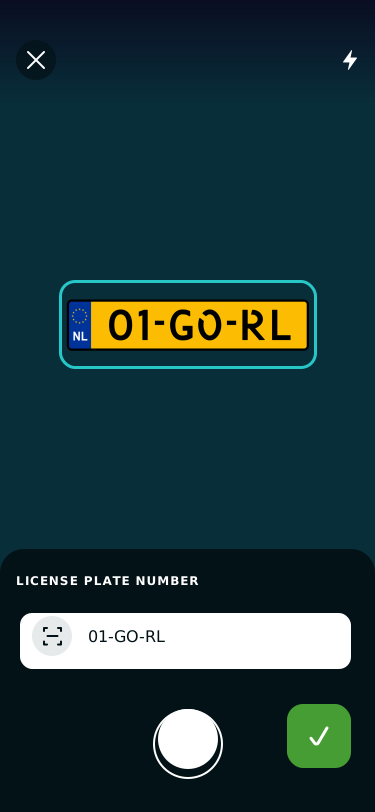
License Plate Scanner
Scan vehicle license plates quickly and reliably.
Scan documents easily:
Still need to scan a document and there is no need to capture specific data fields? We also have a 'document scanner' where you basically take a cut out snap of your document. More information in this article: "Use the Document scanner".