
Scanning Container Codes
You can capture a container code in seconds by simply using your device’s scanner. Our scanner recognizes container codes both horizontally and vertically, making the process fast and flexible.
What Is a Container Code?
Container codes follow the BIC (Bureau International des Containers) standard. Only ISO alpha-codes (owner prefixes) registered with BIC may be used to uniquely identify container owners in international transport and customs documentation. More than 99% of the world's container fleet carries a registered BIC Code.
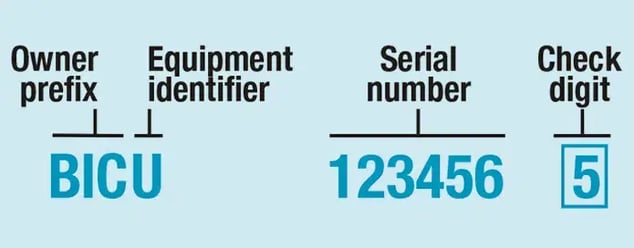
Each container code consists of four key parts:
-
Owner Prefix – A three-letter code identifying the container owner
-
Equipment Identifier – A letter indicating the type of container
-
Serial Number – A six-digit number unique to the container
-
Check Digit – A single digit used to validate the code
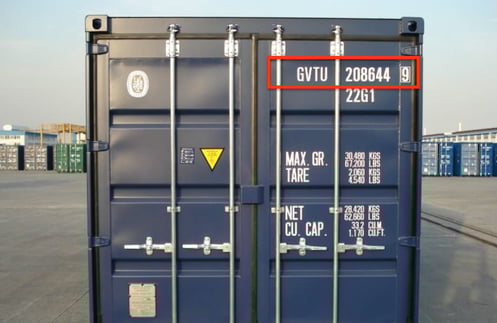
Note: Have you been experiencing issues with scanning a specific container code? Reach out to our support team and we are happy to start an investigating and search for the possible solutions.
It could be that the owner code is not (yet) recognized in our database. Once the code is added to our database upon your request, it will be made available to our users in the next mobile app release that is scheduled every 4 weeks.
How to Scan a Container Code
Follow these simple steps to scan a Container Code:
1. Add the Container Code Scanner in your Mobile app
You can use the scanner as:
-
a Step in your "Workflow" (see article).
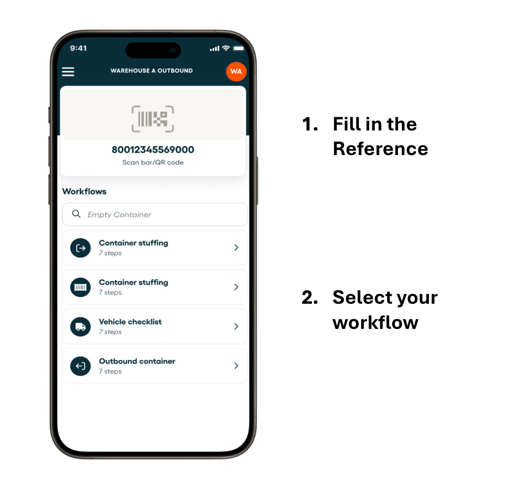
You can add container code scanning as a seamless step within your workflow. There is an option to pre set it horizontally or vertically. It's also possible to switch between a horizontal scan and vertical scan while using the scanner in the mobile app.
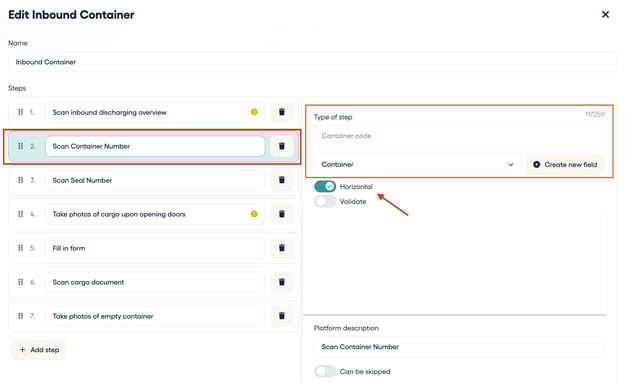
2. Open the camera scanner
Navigate to the Container Code scanning feature within the app. This will activate your device’s camera.
3. Point the camera at the Container Code
Hold your device steady and aim the camera directly at the Container Code. Make sure the entire Container Code is visible on your screen.
- Keep the Container Code in focus and centered in the frame.
-
Avoid glare, shadows, or obstructions.
-
Step back slightly if the Container Code appears cropped on the screen.
4. Once scanned from the Container Code
-
The Container Code is automatically saved as a field in your file
-
You can filter and search your files using this field for quick access and better organization
This ensures that container identification becomes a smooth and reliable part of your daily operations.
💡 Tip: Interested in using more scanners available in the Cargosnap app? For example for scanning Barcodes / QR codes, Container Codes and Container Seals.
See this article: "Using scanners to collect data."
Other interesting articles for you:
Build your workflows (including the container scanner)