
Foremost, Cargosnap differentiates two different types of Widgets: Top Widgets and Bottom Widgets.
In below example you see the mobile app with the:
- 'Barcode / QR-code' reference as the Top Widget.
- 'Workflows' as the Bottom Widget.
💡Tip: If you press+hold the Top Widget, you can swipe to the left and to the right.
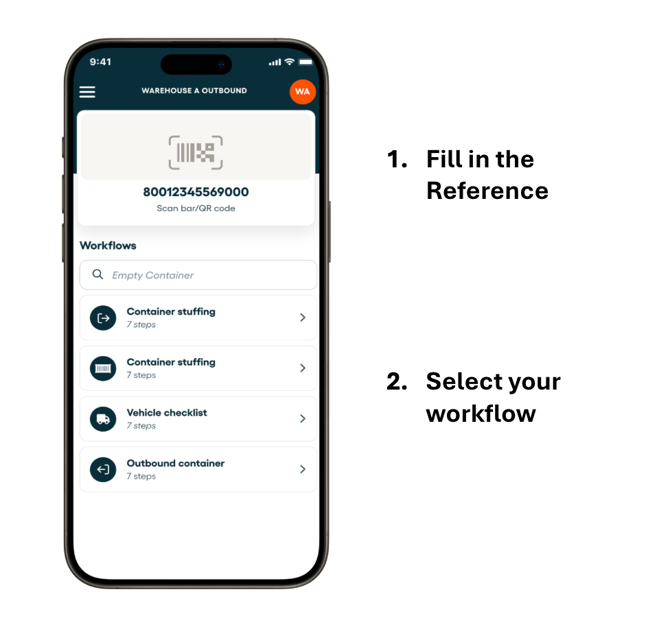
Top widgets
Top widgets are used to provide a reference: this establishes the file. 🗂️
It is the reference you use to group all the recorded information for one shipment or equipment together. Use the reference to easily find back all information and optionally link your own IT solution to Cargosnap data via one of our APIs.
-
Barcode/QR code – scan a barcode
-
Container code – scan the ISO compatible code from a container door
-
License plate EU/BR/IN – scan a vehicle (truck or trailer) license plate
-
Text & Number - scan a text and/or number, or simply add it with the keyboard
-
Keyboard – data entry with your keyboard. This field can optionally be checked for the format (e.g. having the exact number of characters you expect)
-
Timestamp - in case there is no specific reference available at the moment of starting a Cargosnap file, you may use the automatic timestamp mechanism. You can always update the reference code on the platform later.
-
GetFile - Get an existing open file to add additional information to it
Bottom widgets
Bottom widgets are used to collect information, to be added to the corresponding file. Information comes in many forms, each represented by its own Widget.
- 🔀 Workflow – brings together all of the above: define your own workflow consisting of multiple bottom widgets, put in sequence. This allows you to define the data required for each file, for consistency and completeness of your files!
-
📷 Snap – take one photo, with the opportunity to add an optional comment and indicator for damage
-
📸 Serial Snapper – take multiple photos in one fast series, potentially indicating damage on any of them
- 📝 Forms – fill in one of your self-defined forms
Manage your widgets
If you want to manage the widgets on your device, you can set this up per 'Team'. Read more in this article: 'Build your own app' with Widgets
💡 Tip: Change the name of your Top Widgets by clicking the 'pencil' in each widget, so that your operators directly understand which information is needed for the file reference.
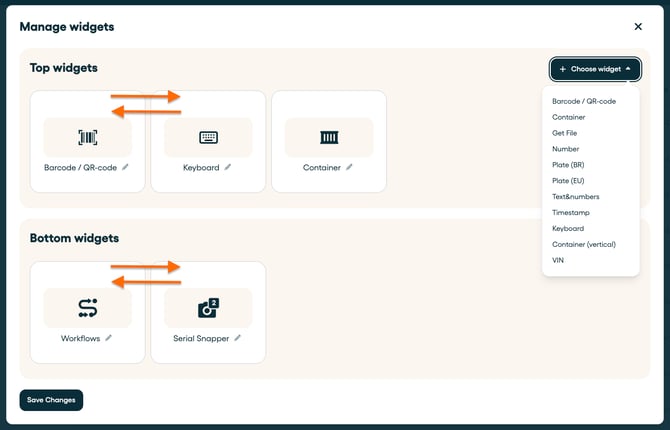
Custom titles for your widgets
Change the name of your Top Widgets by clicking the 'pencil' in each widget, so that your operators directly understand which information is needed for the file reference. For example:
- Custom title = Order number
- Custom helper text = Fill in the order number
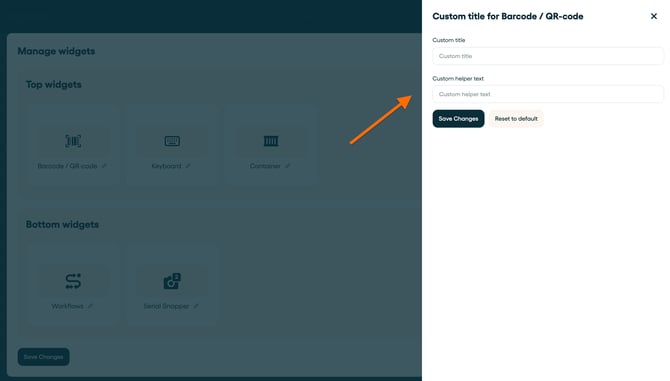
In the mobile app the 'Barcode / QR-code' Top Widget will look like this:

Also see this article about "Custom titles for your reference widget".