
With the best quality photos you prevent miscommunication
In several use cases and situations it could be valuable to first see your photos as an operator or platform user, before the next step in the logistics process continues. Think about the actual shipment that takes place after the outbound workflow is completed. You want to make sure that all photos are reviewed first:
- Operators want to make sure they took clear and the right pictures as requested in the workflow. You want to take out photos with damage, if the damage was already resolved by the operator (e.g. replacing a damaged pallet).
- Platform users want to resolve issues with the shipment (e.g. block shipment, repair damage, deliver rework) or simply review if the shipment has all the right orders included.
This is how you review your photos in different ways
With below options we break down the ways of reviewing your photos from the Mobile App and from the Platform.
Mobile app
-
Snap: With a single snap you always have the option to review your photos before you save it and send it to the platform. Apply the single snap feature (instead of the serial snap) to prevent photos being send directly. You can even apply the single snap multiple times for taking a snap of the same object (read; take picture 1, take picture 2, etc.).
.webp?width=670&height=620&name=Scherm_afbeelding%202026-04-24%20om%2014.41.04%20(1).webp)
- Serial snap: With the serial snap option in your workflow you are able to review all the photos taken in a series. However, the photos have been send already to the platform one by one. It's not possible to delete these photos. We believe the serial snap solution should have a fast paced and forward motion without the operator having to doubt every photo that was taken. We advise to apply multiple 'single' Snap steps if you want to take a series of photos and be able to review and delete a photo.
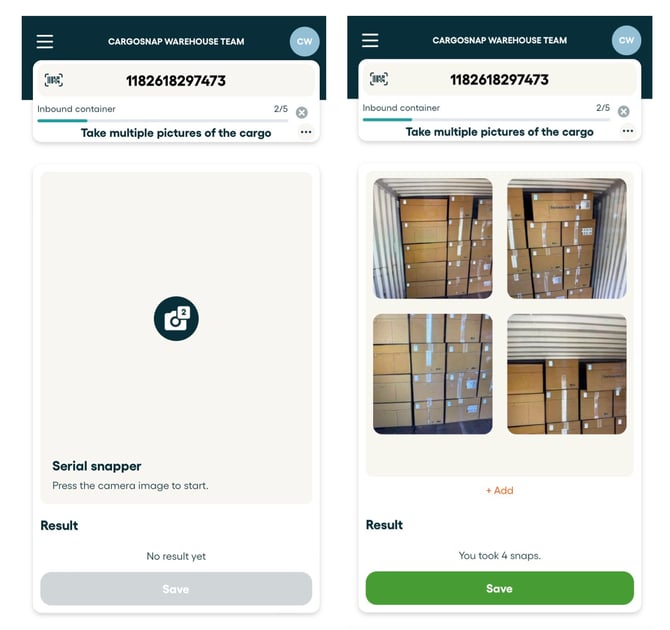
Not possible to review photos end of workflow
By the end of the workflow, it's not possible to see all photos that were taken during the execution of this process. By this time, the photos are already send to the platform. You would need to review and delete your photos while using the single Snap feature.
Platform
As a platform user you want to resolve issues with the shipment (e.g. block shipment, repair damage, deliver rework) or simply review if the shipment has all the right orders included. It's your final responsibility that the receiver of your shipment is not surprised by a damaged or incorrect delivery.
-
Workflow Action (Notify a user): You can be notified once a workflow is completed. This will give you the chance to review the file, approve the shipment to go out or to even share the file with anyone who needs to see the file as well (e.g. your client).
- Workflow Action (Create an Issue): Apply the Issue Management solution for workflows that are specifically designed for identifying issues (such as damage, missing items or mismatched labels). Issues can be resolved by the platform user.
More information on Workflow Actions in this article.
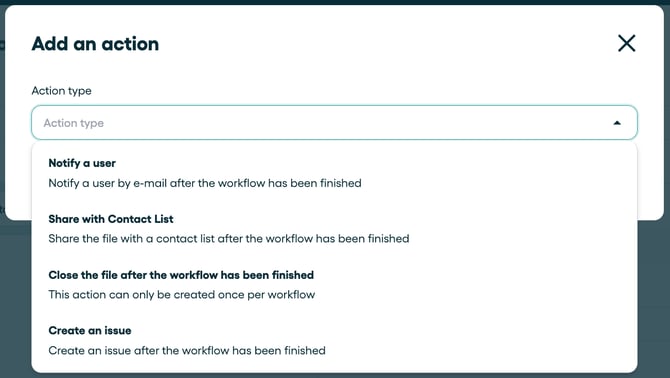
On the platform you have the options to:
- Delete photos from a file. It could be that you want to remove a photo entirely as it doesn't add value anymore for the file receiver. Think about a damaged pallet that was already replaced by another pallet. See this article.
- Exclude photos from your share or PDF report. You can do this one by one or in bulk. See this article.