
⚠️ IMPORTANT: The Speed Test button is only available when DEBUG mode has been enabled on your device by the Cargosnap technical team.
DEBUG mode is a special troubleshooting feature that unlocks extra tools in the app. It helps our technical team quickly identify and resolve complex issues, so if you've been asked to run diagnosis on your device, it's because we're working to make sure you have the best performance possible! Read more about it here.
Running a Speed Test
Here's a step-by-step on how to run a speed test from your app:
- Click the ☰ on the top left of your app screen
- Click on the Advance option, then locate the Speed Test button:
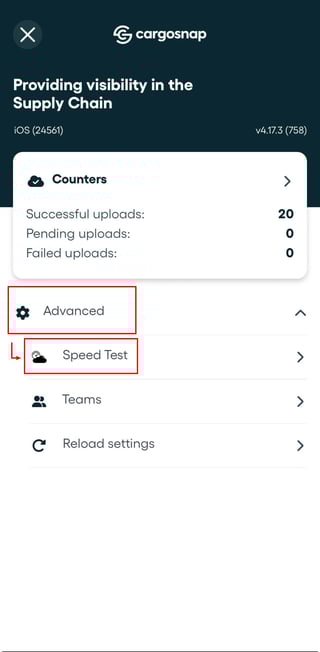
3. Once on the Speed Test screen, click to Start Test.
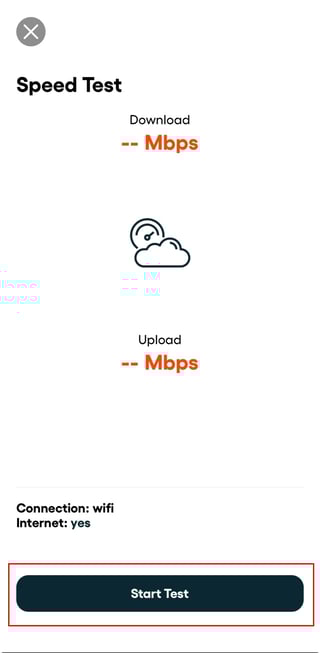
4. Wait for the test to finish!
And it's that simple! That will help us check your network, thank you for your help!
In case there's any extra instructions, our team will keep in contact! Thank you for helping us improve the Cargosnap solution! Your cooperation ensures we can resolve issues faster and make the app even better for you and all users. 🚀