Step 1: Create your Contact Lists
Firstly, you need to enable and create one or more Contact Lists.
As a SuperAdmin user, go to your "Company settings", then click on the "Permissions" tab to enable the Contact List feature:
This will enable the Contact Lists on your left side menu.

From here, make one Contact List for each of your customers. You may add one or more e-mail addresses for each client.

Step 2:
There are 3 ways to automatically share files with your Contact Lists:
- A) Share to Contact List from your workflow
- B) Action after workflow
- C) Automatically share everything
A) Share to Contact List from your workflow
Go to workflows > Create a new workflow > Select 'Type of step' > Share to Contact list.
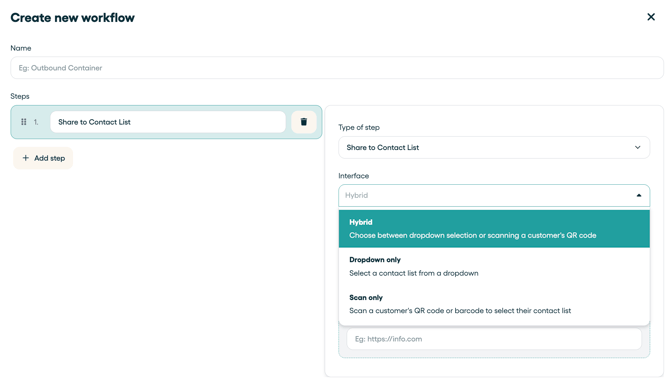
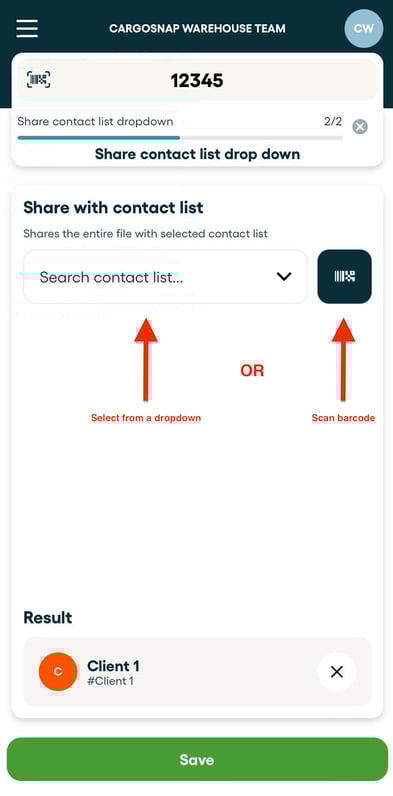
Once you've added the step 'Share to Contact List', choose the interface for the mobile app that fits best for your operations:
- Hybrid (dropdown or scan barcode)
- Dropdown only (all your Contact Lists in a dropdown)
- Scan only (scan barcode that represents the Customer ID in your Contact List).
Below an example of the Hybrid mode.
B) Action to a workflow (Share with Contact List)
Share the file with a contact list after the workflow has been finished. Read more on this article.
This is the setting that will share every file created with this workflow always with the same Contact List. It's very handy for customer-specific workflows, for example.

C) Automatically share everything
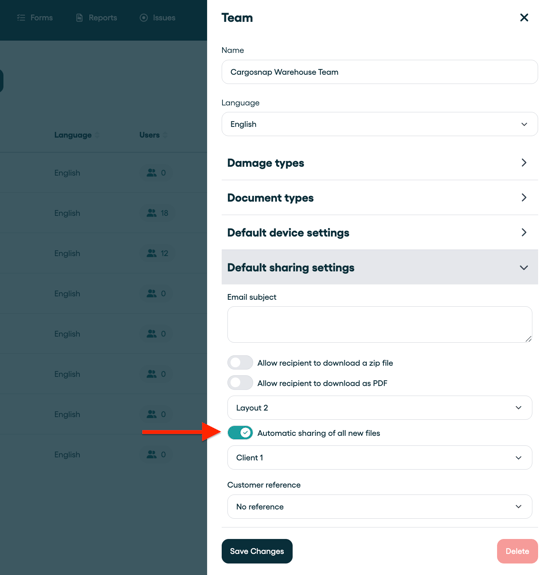
- Go to "Teams"
- Select the Team
- Find "Default Sharing Settings"
- Click "Automatic Sharing..."
- Select the Contact List you created, and Save.
More information in this article.