Why would you share every file?
Each logistics operation is different. But in some situations you may have a Team working exclusively for an (external) stakeholder (e.g. with subcontracted logistics or full 4PL activities). Then you may want to share everything you do with another company. That's what this article is about.
💡 Quick note: in order to set up this workflow, you need to have SuperAdmin permissions in your Cargosnap account.
Step 1: Create your Contact Lists
Firstly, you need to enable and create one or more Contact Lists.
As a SuperAdmin user, go to your "Company settings", then click on the "Permissions" tab to enable the Contact List feature:
This will enable the Contact Lists on your left side menu.

From here, make one Contact List for each of your customers. You may add one or more e-mail addresses for each client.

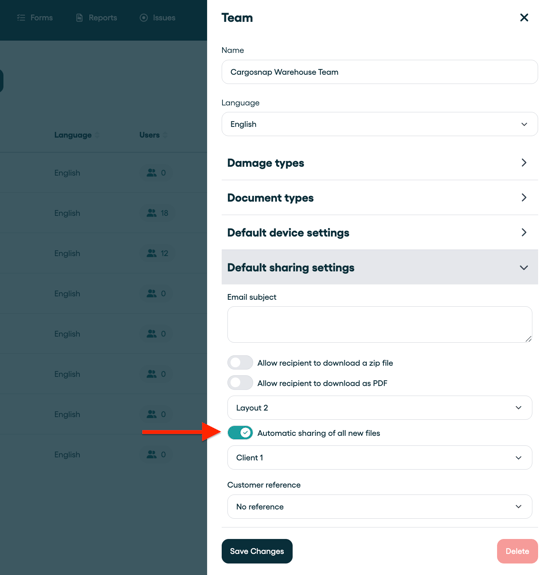
Step 2: Enable 'Automatically sharing of all new files'
- Go to "Teams"
- Select the Team
- Find "Default Sharing Settings"
- Click "Automatic Sharing..."
- Select the Contact List you created, and Save.
More information in this article.