
Workflows
The first point we need to understand is that a form can be one of the steps in a workflow. The reverse does not apply. This is because, in a workflow, you can create an order of tasks that must be performed in the operation. These tasks can range from collecting photos, and videos, to filling out checklists, which are normally created using the forms tool.
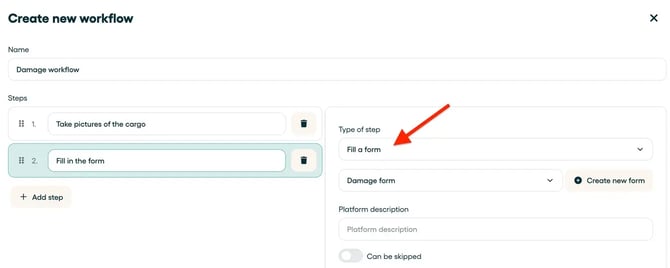
Note below how you can include a form as a step in flow creation.

Workflows are ideal for when you need to structure an order of different tasks. Within this structure, you can even have the step of requesting several photos in sequence (serial snapper).
💡 Note: Want to learn how to build a workflow and all the possible steps? Read this article Build your Workflows.
Forms
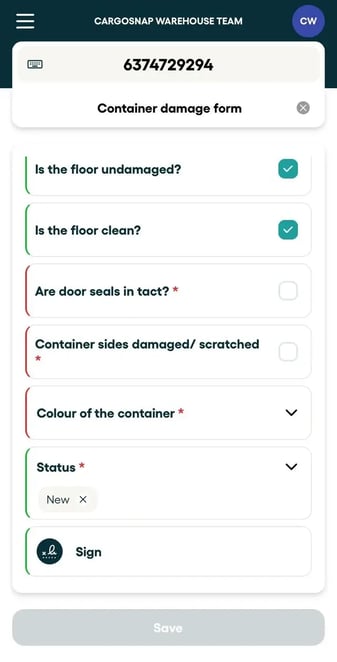
As we mentioned, the form is a step in a workflow. When we talk about forms, we need to understand that they are, in short, 'questions and answers', which can be answered according to the structure you define. It is the ideal option mainly for creating checklists, which require answering pre-defined questions.

Forms are more powerful when we need to answer questions in writing, or even use a list of options. It is also possible to use the 'paragraph' options, for example, to include additional instructions for those doing the collection. In addition, the forms option also has the function of conditional questions, that is, data that will be collected depending on the answer to previous questions. Find out more about how to use this function here.
💡 Note: In this article 'How to build a form' you can find everything on building forms.
Export your form results to Excel
Additionally, and probably the most important thing, is that form responses can be exported to Excel natively on the platform, without the need to use an API. A workflow, to be completely converted into Excel, requires users to have a little more programming and API knowledge. Therefore, when creating a form, consider what questions would be interesting to have in a spreadsheet. This article will show you how to easily export a form to Excel!

💡 Note: that within a form there is no option to include photos in series, only one photo per question, when the SNAP type is defined. This is another point to take into consideration when choosing whether to use a form or workflow. For many photos, we recommend combining the form as a flow step and having a serial snapper step within it.
To summarize
| Functionality | Workflow | Forms |
| Native export to Excel | NO | YES |
| Snap | YES | YES |
| Serial snap | Yes | NO |
| OCR Scanner | YES | NO |
| Predefined selection | NO | YES |
| Conditional fields | NO | YES |
Still unsure which option will suit you best? Use the help center where we can help you even more!