
Scanning the License Plate
By using your device’s camera, the app automatically records the license plate number, eliminating manual entry and reducing human error. Once you've completed the scan, it saves both the image and the scanned data to your file.
How to Scan a License Plate
Follow these simple steps to scan a vehicle license plate:
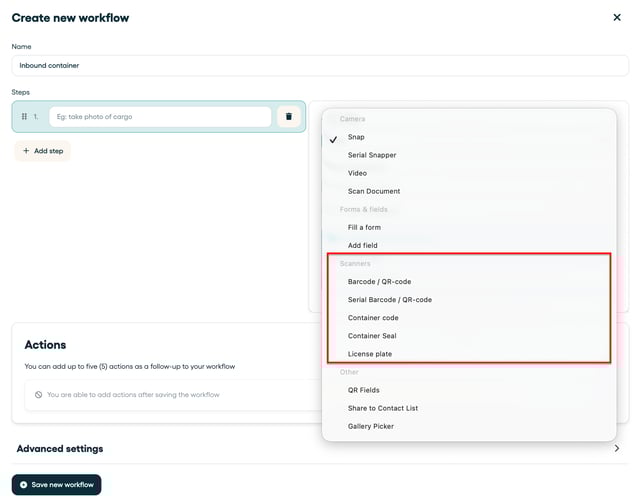
1. Add the License Plate Scanner in your Mobile app:
You can use the scanner as:
-
a Step in your "Workflow" (see article).
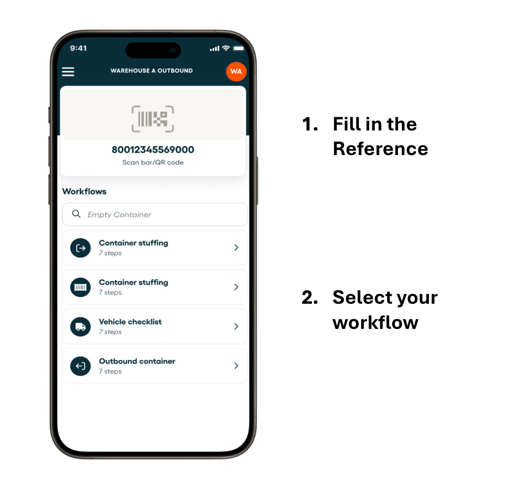
2. Open the camera scanner: Navigate to the license plate scanning feature within the app. This will activate your device’s camera.
3. Point the camera at the license plate: Hold your device steady and aim the camera directly at the vehicle’s license plate. Make sure the entire plate is visible on your screen.
- Keep the plate in focus and centered in the frame.
- Avoid glare, shadows, or obstructions.
-
Clean or wipe the license plate if it’s dirty or obscured.
-
Avoid scanning while the vehicle is moving.
-
Step back slightly if the plate appears cropped on the screen.
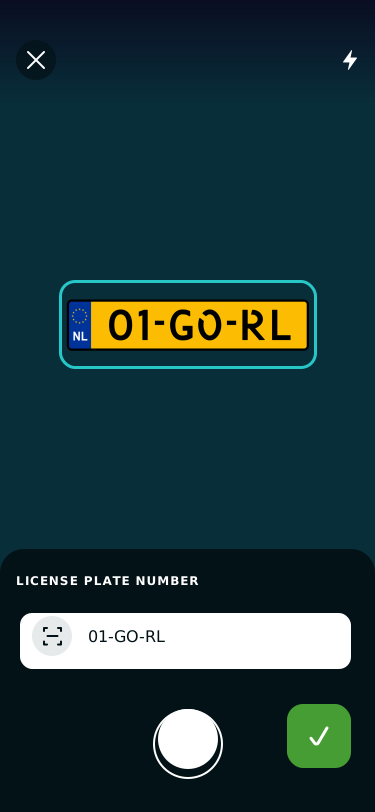
And that's it, the License plat picture and data field is now saved in your file!
💡 Tip: Interested is using more scanners available in the Cargosnap app? For example for scanning Barcodes / QR codes, Container Codes and Container Seals.
See this article: "Using scanners to collect data."