Situations that suggest an update is needed:
-
Features are not working properly, such as buttons doing nothing or pages failing to load.
-
Frequent crashes or the app closing unexpectedly.
-
Error messages when logging in or using certain features.
-
Very slow performance or freezing.
💡 Note: Do you have pending or failed uploads? This is mostly related to your internet connection. Read in this article what to do.
How to Update the App
Follow these steps to update your app:
-
Open your device’s app store:
-
Google Play Store for Android devices
-
Apple App Store for iPhone or iPad
-
-
Search for the app you want to update.
-
Tap Update.
-
Once the update finishes, reopen the app.
How to enable automatic app updates on your phone
To set up automatic updates for the CargoSnap app on your device:
Android (Google Play Store app)
-
Open the Google Play Store app
-
Tap Menu (3 lines) in the upper left corner and then My apps & games

3. Select the CargoSnap app
4. Tap on the three dots [...} in the upper right corner of the screen
5. Tap Enable auto update

iOS (App Store)
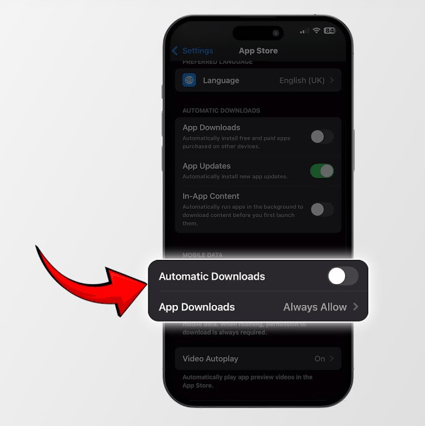
With an Apple device you cannot decide per app whether you want to enable automatic updates or not. You turn it either on for all apps, or off.
Depending on the type of Apple device and the software version installed on it, the way to do it may vary a little, but it comes down to the following:
1. Go to the settings
2. Tap App Store
3. Under the header ‘Automatic downloads’ enable 'App-updates'.
Note: If you don’t want that your 4G data is used to download updates, you can disable ‘Automatic downloads’ under the header ‘Mobile data’