
How to Switch Widgets
When using the Cargosnap mobile app, simply swipe left or right on a widget to switch to another available widget. This functionality is available for both the top widget and the bottom widget.
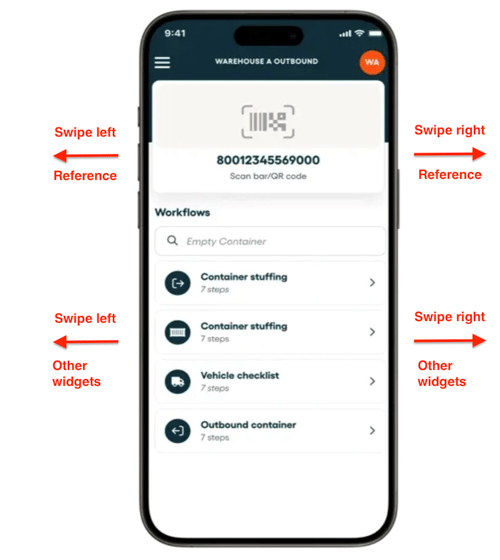
How to choose your widgets for the mobile app
To build your own app, and set the defaults, navigate to "Teams, Devices and Users", via your company name in the upper right corner.
- Open your Settings on the web platform
- Go to Teams Settings
- Select the Team which settings you would like to update.
- Select "Default device settings" in the right menu sidebar.
- Select "Manage Widgets".
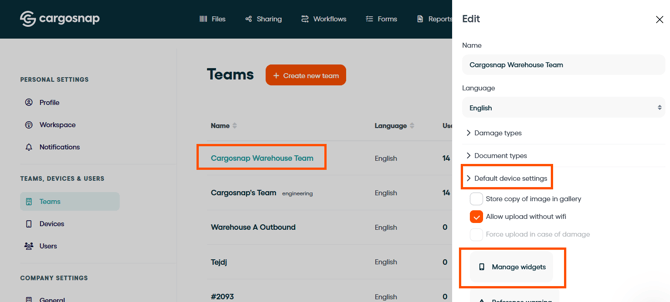
Top and Bottom widgets
The top widget is used to collect your reference information. Depending on your workflow, you may prefer different methods for capturing a reference.
The bottom widget is used to collect inspection data. Just like the top widget, you can swipe between different inspection methods.
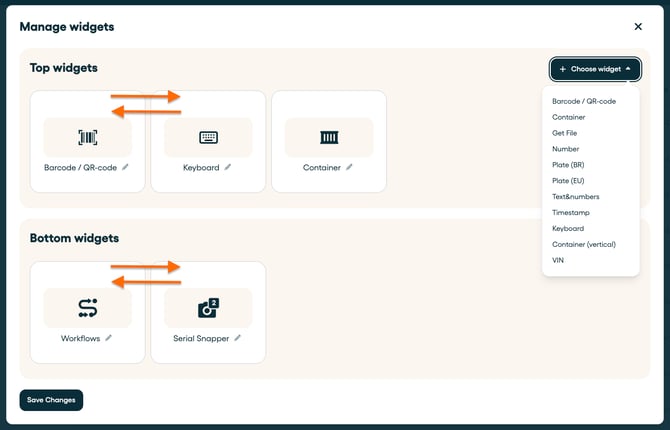
Building your mobile app with widgets
Want to lear more on using different widgets in the mobile app? Read this article.