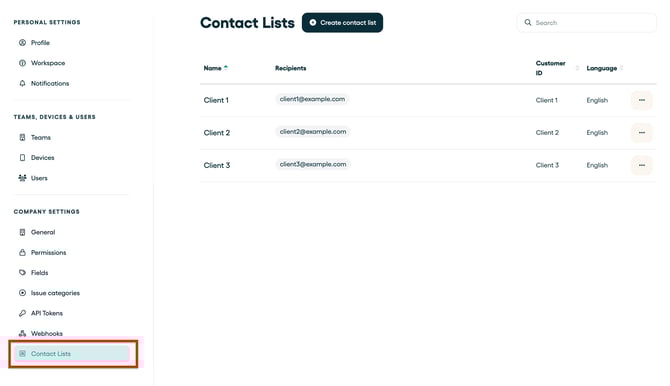
Step 1: Create a Contact List
To initiate the sharing from a specific workflow, make sure you first set up your Contact Lists (see article) in your company settings.
Step 2: Add the step to your workflow (Share to Contact List)
Go to workflows > Create a new workflow > Select 'Type of step' > Share to Contact list.
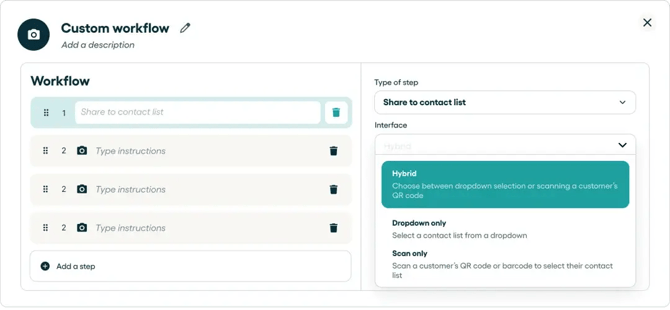
Step 3: Choose your interface for the mobile app
Once you've added the step 'Share to Contact List', choose the interface for the mobile app that fits best for your operations: Hybrid (A), dropdown only (B) or scan only (C).
A) Hybrid
With the hybrid mode, your operators will be able to choose for the dropdown only option or the scan (customer ID) option.
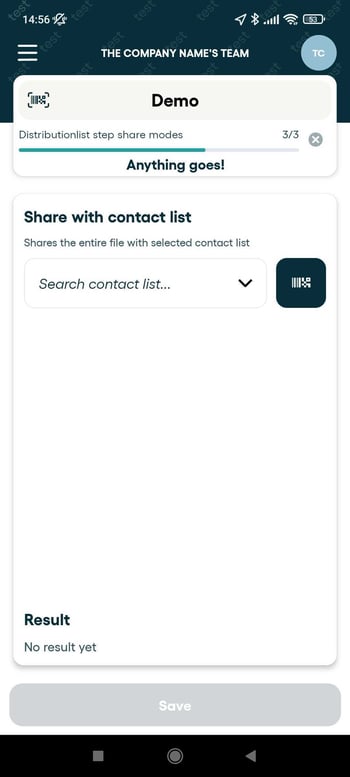
B) Dropdown only
In your workflow you can implement a step where your operator will chose a Contact List from a dropdown.
⚠️ Important: This will give your mobile operator access to all contact lists.

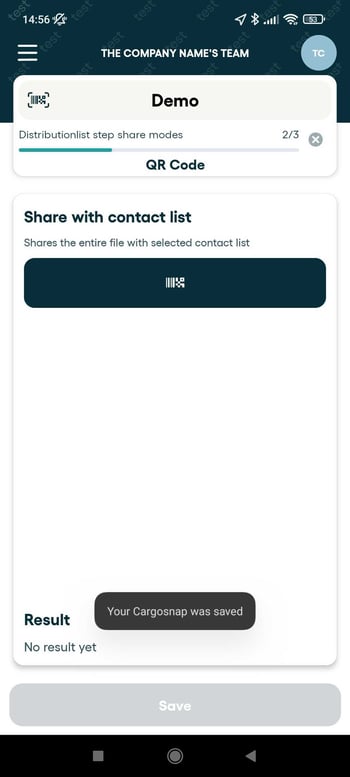
C) Scan only
With this feature you can also choose to scan a barcode instead. Bear in mind that the barcode should be your 'Customer ID' as set on your Contact List'.
☝️ Important: Each Contact List should have a unique reference (Customer ID) that can be scanned with a barcode (see article 'Contact List'). You may want to use the customer reference from your WMS as the customer ID in Cargosnap.