Why using the document scanner?
We know you can just take a picture (snap) of your document and store it on our platform: there's no secret to that!
But to make this process even more efficient, we developed a camera that scans documents easily, identifying the corners of your document, and it will be automatically registered.
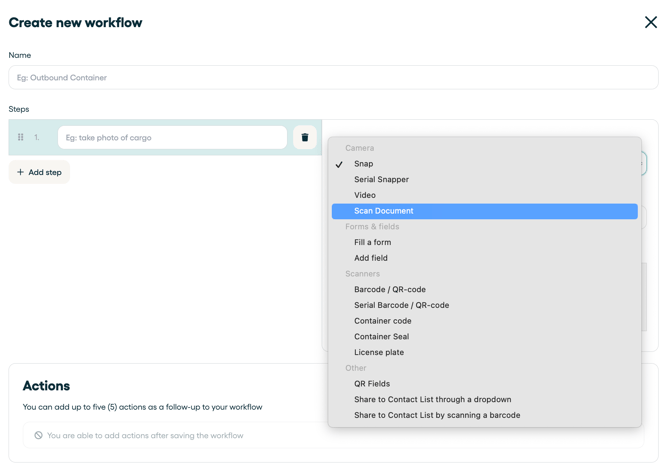
How to apply the document scanner in your workflow
- Go to 'Workflows'
- Go to your first step and select 'Type'
- Now select 'Scan Document'
Multi-page scanning
The document scanning step in a workflow allows multi-page scanning. This means that if you hover your camera over multiple documents, it saves every document.
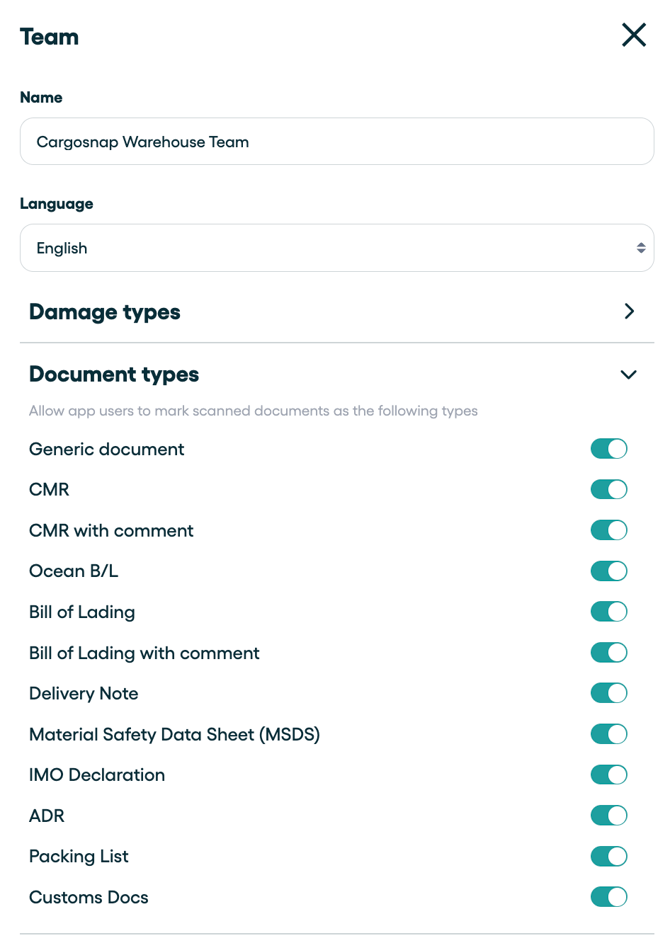
How to set types of documents
You can even identify which type of document you're scanning and link this to a notification, so every time that type of document is scanned and saved, you'll receive an e-mail with that file!
You can set the types of documents under your Team's settings.
- Go to settings
- Go to 'Teams'
- Select your team
- Go to 'Document types'