How to Open the Menu
Tap the menu icon ☰ in the top corner of your screen to open the mobile app menu.
Menu Sections Explained
Device & App Information
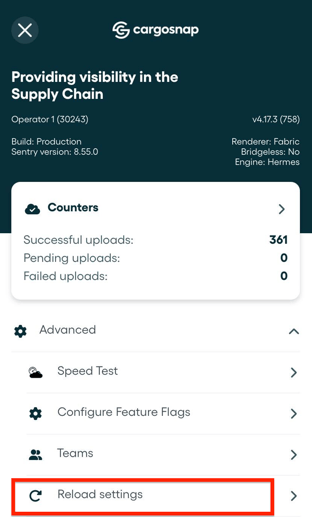
At the top of the menu, you’ll find key information about your setup:
-
Device name – Helps you identify which device is currently in use.
-
Device ID – A unique identifier that may be requested by support when troubleshooting.
-
App version – Shows the version of the mobile app you are currently using.
This information is useful when reporting issues or verifying that you are running the latest version of the app.
Example:
Device name (device ID) vX.X.X (XXX)
This could be displayed as:
Operator (12345) v.4.17.3 (758)
Upload Status Counter
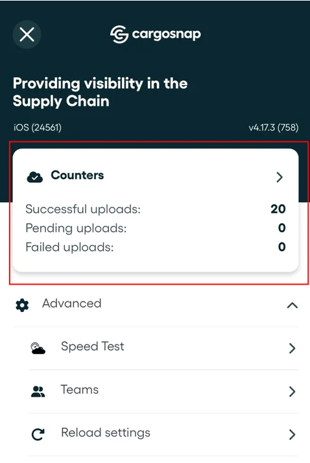
Below the device information, you’ll see the counter box, which provides an overview of your upload activity:
-
Successful uploads – Items that have been uploaded successfully.
-
Pending uploads – Items waiting to be uploaded.
-
Failed uploads – Items that could not be uploaded.
This section helps you quickly understand whether your data is syncing as expected or if action may be needed.
Tip: More information on retrying your pending and failed uploads here in this article.
Advanced Settings
The Advanced button gives access to additional tools and configuration options:
-
Run speed test – Check your internet connection speed to help diagnose upload or sync issues. ⚠️ Only available through our support team.
-
Configure feature settings – This way you can enable a certain feature. ⚠️ Only available through our support team.
-
Select team – Choose or change the team associated with the device.
-
Reload settings – Refresh workflows and settings, and manually retry any pending or failed uploads. More information in this article.
These options are mainly used for setup, troubleshooting, or when changes need to be applied immediately.