
iPhone & iPad
-
Tap on any text field to bring up the keyboard.
-
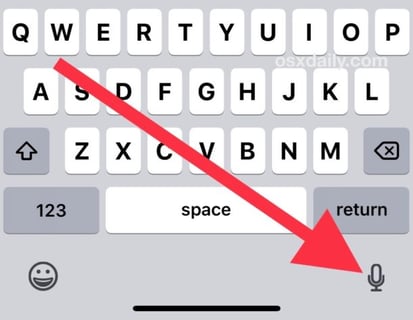
On the keyboard, tap the microphone icon.
-
This is usually located near the space bar or bottom right of the keyboard.
-
-
Start speaking clearly.
-
Your words will appear as text automatically.
-
Tap Done or stop speaking to finish dictation.
If You Don’t See the Microphone
-
Go to Settings > General > Keyboard
-
Make sure Enable Dictation is turned on
Android
-
Tap on a text field to open the keyboard.
-
Tap the microphone icon on the keyboard.
-
Commonly found near the space bar or top row.
-
-
Speak clearly to dictate your message.
-
The text will appear as you talk.
-
Stop speaking or tap the keyboard icon to finish.
If You Don’t See the Microphone
-
Go to Settings > System > Languages & input
-
Ensure Voice input is enabled
-
Confirm you’re using a supported keyboard (such as Gboard or Samsung Keyboard)