
Pending uploads may occur for a variety of reasons, such as connectivity issues, device storage limitations, or ID mismatches, leading to your photos not showing in the platform. This guide outlines the recommended best practices to ensure your records are uploaded successfully and without delay.
1. Check for ID Mismatches
Each device must be correctly linked to its corresponding ID in the Cargosnap platform. You can read more about registering and re-registering a device by clicking here.
⚠️ If you notice a discrepancy between the ID shown in the device and the ID associated with the pending upload, please contact the Cargosnap team and share both ID numbers and the number of pending uploads.
Example:
The device below is linked to ID 14439; however, the pending upload was initially associated with ID 27447.
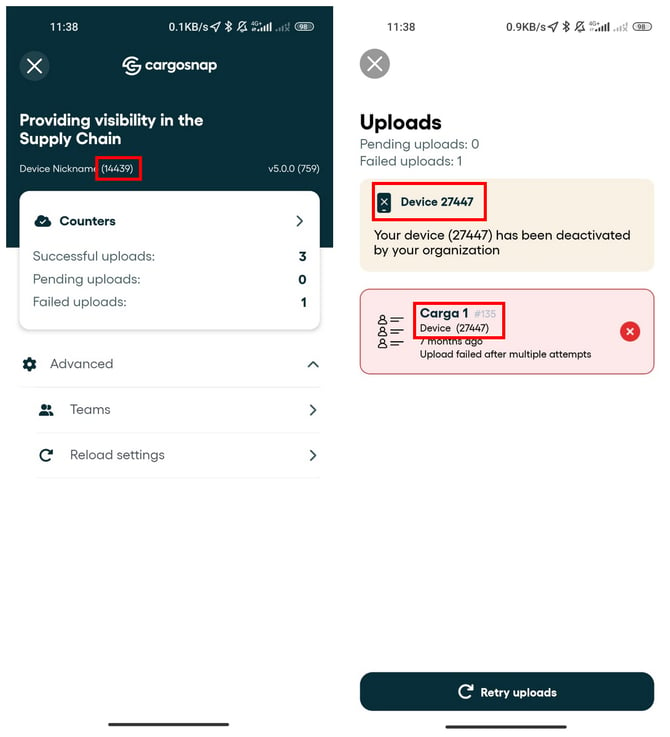
An aligned device–ID connection is essential for uploads to find the correct path to the platform. Please contact Cargosnap support immediately if they don't.
2. Verify ID Match but Still See Pending Uploads
If the IDs match but uploads remain stuck:
- Switch to another internet network (Wi-Fi or mobile data).
- Keep the Pending Uploads screen open for a few minutes so the device processor can prioritize the upload queue.
☝️ Note: if you're using an Android device, we also recommend disabling the Battery Optimization for the Cargosnap app.
This simple step often accelerates the upload process.
3. Ensure the Device Has Enough Storage
The Cargosnap app needs available internal storage to function properly.
- Before sending a record to the platform, the app saves it temporarily on the device.
- If storage is full, the app cannot save the temporary file, and therefore cannot upload it.
We strongly recommend:
- Deleting unnecessary photos, videos, or apps
- Regularly checking remaining storage capacity
- Ensuring enough free space is available to handle daily capture volumes
4. Restart the App Periodically
Closing and reopening the app helps in two ways:
- It can force the upload queue to reprocess pending files
- It refreshes internal configurations, keeping the app running optimally
A quick restart can often resolve minor syncing issues.
5. Keep the App Updated
Using the most recent version of the app ensures access to all performance improvements and bug fixes.
To update manually:
- Open your device’s app store
- Search for “Cargosnap”
- Tap “Update”
If your device does not auto-update apps, we recommend checking for updates regularly.
Need More Help?
If you followed all the steps above and still experience issues, our support team is ready to assist. Reach us through the support channel inside the Cargosnap app or via your usual Customer Success contact. 😊