
☝️ Note: to remove a user, you need to be either:
-
A "Manager" of the team of the user you want to remove;
-
Or an Admin ("LicenseAdmin" or "SuperAdmin")
Read more about roles here.
Removing users is as simple as adding them:
-
In the upper right corner, click on your company name and navigate to "Teams, devices & users";
-
Then, go to "Users" to locate the user you would like to remove;
-
Click the User name;
-
Hit the "Delete" button:

If you find out that you removed the user and later regret it... Do not worry, you may even restore the user yourself!
Permanently delete a user
As you can see, we allow restoring a user. This means the user is not "actually gone".
Why would you permanently delete a user?
-
No reference to a name and email
-
Compliance reasons
-
You want to re-use the email address for another account
Steps to permanently delete a user:
1. Open the Users page
2. Click the "Show deleted users" checkbox:

3. Now, you will see the users that have been deleted.
Select the user you wish to permanently remove from our database and click "Delete permanently"
See below:
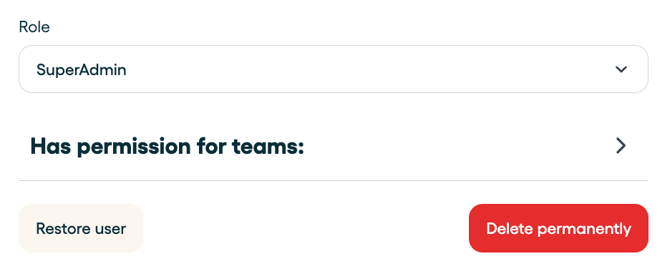
Warning: Please note that this is permanent and thus totally irreversible.