
You can either record a video from the mobile app through a workflow step, or by manually adding it on the platform.
Add a Video via a Workflow Step (Mobile app)
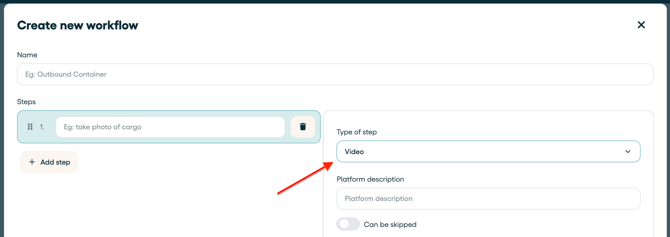
You can configure your workflow to include a step where users are prompted to record a video.
Steps:
- Go to your workflow settings.
- Edit an existing workflow or create a new one.
- Add a new step and select “Video” as the step type.
- Configure any requirements (e.g. mandatory/optional, instructions for users).
- Save and publish the workflow.
💡 How to build a workflow
More information about building workflows in this article.
Manually Add a Video from the Platform
If a video wasn’t captured during the workflow, you can still upload one directly to the file.
Steps:
- Open the relevant file in the platform.
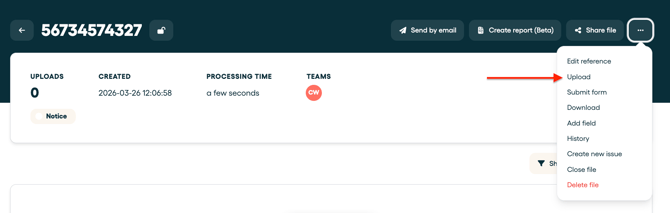
- Navigate to the 3 dots in the right top corner
- Click “Upload”.
- Select your video file from your device.
- Confirm the upload
⚠️ Stable internet connection needed to play the video on the platform
Once the video is uploaded to the file, you need a stable internet connection to play the video. A longer loading time and a video that stutters can occur once your internet connection is not stable.