
Conditional fields are applicable in almost any situation when you apply forms but want to keep the form short at the same time. Let me sketch it with a short container example.
Example:
Suppose you need to inspect an incoming container for cleanness. Well, if it is clean, that would just mean a simple single question, right? Inspection finished!

But what if the container is dirty? You want more questions!
When the container is in fact dirty, there is more you want to know. So you may ask some follow-up questions in that case. For example, is it wet or dry dirt? And if it is dry dirt, is it sand or some kind of chemical?
You could of course add all those questions to a form (just like in a paper form), but this will also make the form very long.
So, here the "Conditional fields" come in! Let's go ahead and build this form with the above example.
Steps to create a conditional field:
1. To start with, build a form with different Form Field Types.
2. Locate the form field where you would like to apply possible conditions (conditional fields); in this case chose the 'Select' type and name it "Is the container dirty?". The choices are Yes and No.

3. Then add a new field, where one can select "Contamination type" when the container is dirty, and add the 3 types of contamination we determined to be required (wet, dry and odor).
4. Now comes the key solution: at the bottom of the field, tick the option "Hidden (Conditional field)". Under that, you'll see "Show when:" to choose the field that you wanted to ask a conditional follow-up question (in this case: "is the container dirty?")
5. Define with what answer (in this case, yes), this follow-up question (in this case, "Contamination type") will show. You can select multiple conditions as an "OR" operator (see this article on how to construct an "AND" Operator in Conditional Forms)

6. "Save condition" to confirm.
There are different Form Field types in our forms, and you can set Conditions on the following field types:
- Select: set conditions if an answer contains a specific choice
- Number: set conditions if "Less than, Greater than, Equal to"
- Text: set conditions if an answer contains a certain word
- Checkbox: set conditions if it was ticked or not
That is it! Let's save the form and see what it does on the app (remember to reload settings, if the app is open):

Now, with this, you can build forms with the most incredible functionality. Simple, but very powerful!
💡 Tip: Show empty fields on the platform
Empty fields in a form are the result of skipping fields in a form on your mobile device. It results in a blank space in your file that can be considered as unnecessary or confusing.
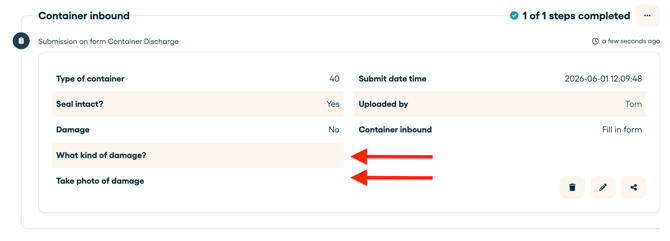
Would you like to hide the empty fields in the file? Simply disable this option in the advanced settings of your form (Go to your form > Edit > Advanced Settings):
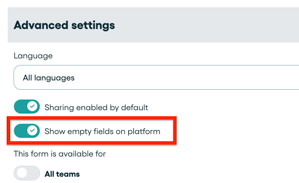
This way your file aligns with the experience you had in the mobile app, where specific fields were skipped.