Follow the below 3 steps to set up your device and execute a workflow.
Step 1: Install the Cargosnap app on your device
Take your Apple or Android device and open the Apple iOS Store or the Android Google Play Store, and download and install Cargosnap.


Step 2: Start the app and activate device with a QR code:
You received a QR code from your manager (see this article 'how to add a device').
On the newly installed mobile app:
- Start the mobile app on your device
- Select “Join my company” and then a QR code reader comes up.
- Aim the phone’s camera at the computer screen containing the QR code that you received from your manager.
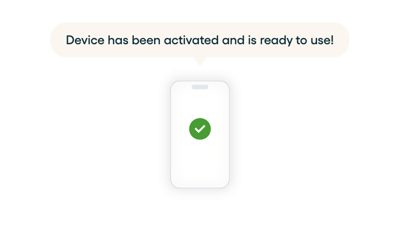
- The platform will confirm by showing a confirmation on a successful registration:
Step 3: Execute a workflow (inspection) on your device
A workflow in Cargosnap is a structured series of steps that guides you through an inspection. Each step can include taking photos, scanning barcodes, filling out forms, capturing videos, or entering information — all tailored to your company’s process.
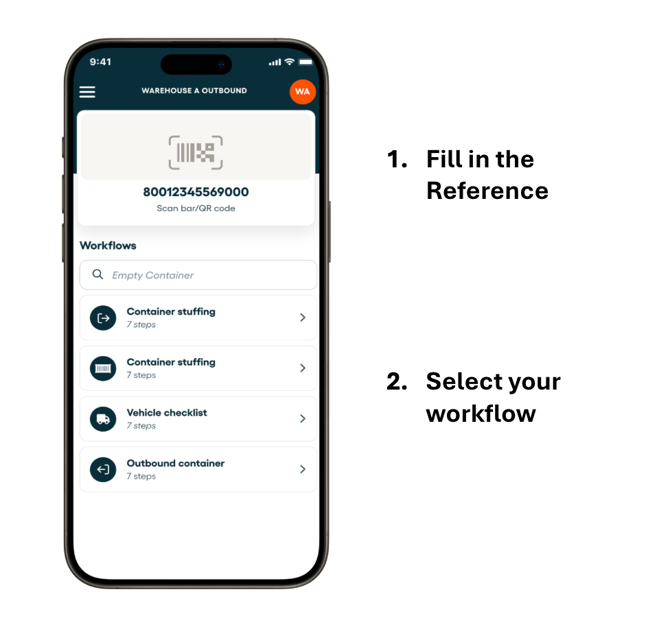
1) First, fill in the file 'reference' at the top of the screen (Top Widget).
This can be done by scanning a code or entering it manually using the keyboard. It is the reference you use to group all the recorded information for one shipment or equipment together (e.g. transportation number).
To learn more about the available tools for setting the reference, click here.
2) Select below the workflow you want to execute (Bottom Widget).
Once you selected the workflow, simply follow the steps and finally select 'Complete'. If you are connected to the internet while executing a workflow, your uploads will be shown realtime in the web app every step of the way.
☝️ Note:
You are not able to execute a workflow without a file reference in the top widget.
In the video below, we demonstrate how you execute a workflow with your device:
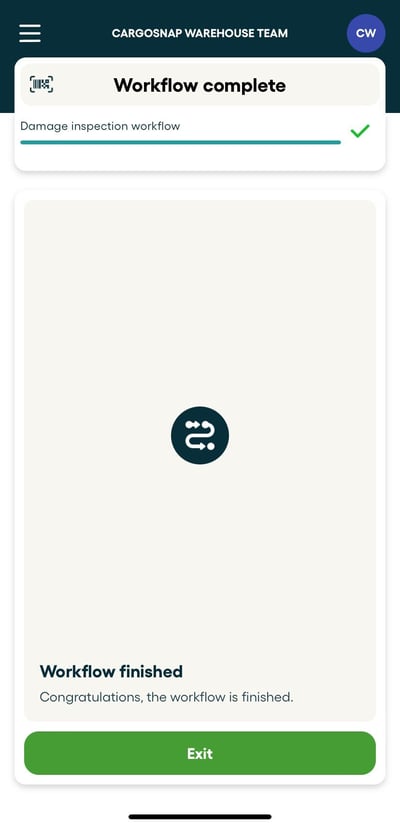
Congratulations, workflow completed!
You just successfully completed your first inspection. Great job! This means you can select 'Exit' and start a new workflow.