
By default, Cargosnap will try to collect location information from the device, when executing a step in a workflow (e.g. snapping an image, or filling in a form).
The location ("Place") is displayed in every workflow step
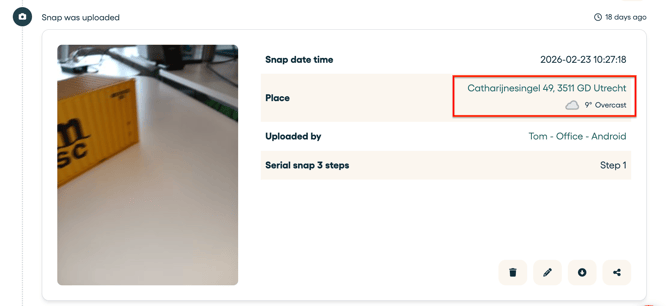
However, it is important to make sure the location services are "on". This is done through your own device settings, and differs per mobile operating system (Android or iOS).
Here are common methods to configure your Android or Apple phone (note that per OS version and device make there may be different screens or settings).
Android
-
Through the top-drawer menu, open "Settings" and locate "Apps"
-
In apps, locate Cargosnap, and tap the Cargosnap icon.
-
Tap Permissions
-
Find the "Location" permissions and make sure it is switched on:

Note: location services need to be active on the device to work. Go to Privacy > Location > On:

iOS (Apple):
-
Open "Settings" and locate "Apps"
-
In apps, locate Cargosnap, and tap the Cargosnap icon.
-
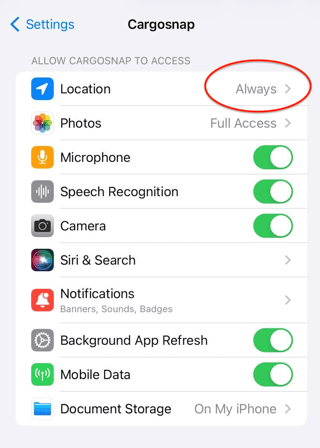
Find the "Location" permissions and make sure it is switched on to a status your prefer (e.g. "Always"):
Just the cargo, not the user is tracked
This setting will allow Cargosnap to obtain the permission at the time of taking the image. We do not use location at any other time other than when we collect cargo information (such as a snap, video, document or form). In other words, we do not track the user when they are not actively capturing information with Cargosnap.
The GPS location does not match the exact location
Sometimes the GPS location displayed for a photo may not match the exact place where the photo was taken.
It this case you might want to consider to turn the location off in your own device settings to prevent miscommunication.
If you still want to display the exact location where a photo was taken, you might find the following article helpful (where a GPS 'zone' is collected as a location 'field'):