Manage the app widgets of all devices in one team
Change the name of your Top Widgets by clicking the 'pencil' ✏️ in each widget, so that your operators directly understand which information is needed for the file reference.
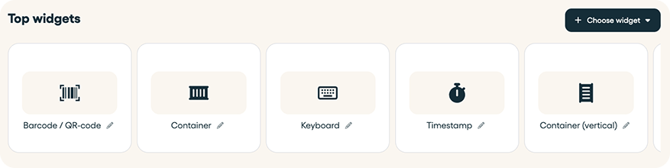
For example:
- Custom title = Order number
- Custom helper text = Fill in the order number
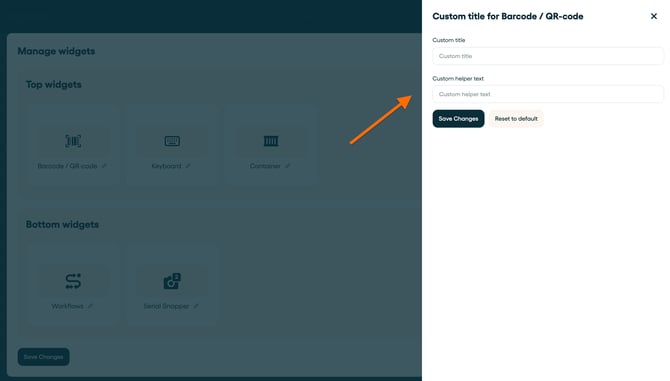
In the mobile app the 'Barcode / QR-code' Top Widget will look like this:

How to get there?
To build your own app, and set the defaults, navigate to "Teams, Devices and Users", via your company name in the upper right corner.
- Select the Team which settings you would like to update.
- Select "default device settings" in the right menu sidebar.
- Select "Manage Widgets".

💡Tip: More information about customizing your mobile app in this article:
Manage the app widgets
To build the app, simply select top and bottom widgets from the drop-down menus on the right. You can subsequently drag and drop the blocks, to change the sequence in which these widgets appear in your app.
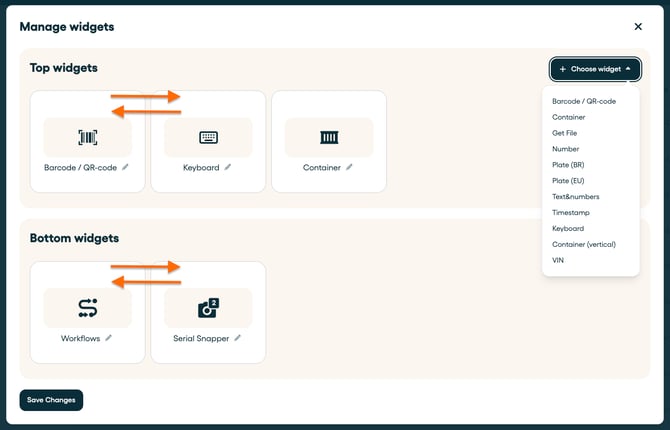
To learn more about each widget, read this article "Understanding the Cargosnap Widgets.
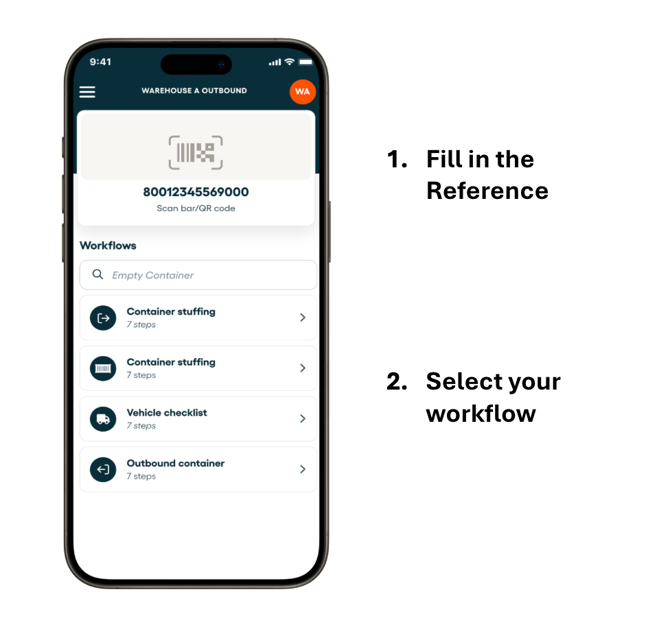
In below example you see the mobile app with the:
- 'Barcode / QR-code' reference as the Top Widget.
- 'Workflows' as the Bottom Widget.
💡Tip: If you press+hold the Top Widget, you can swipe to the left and to the right.